Help
How to use the games
What every button and screen does: starting a round, the table, the radio, playing online with friends, settings, scores and keepsakes. The rules of each card game are in its own Rules screen; this page is about everything around them. The pictures are from Pusoy Dos, but Tongits, Pusoy, Lucky 9, Cuajo and Pares Pares work the same way unless it says otherwise. Tap a picture to see it full size.
The start screen
Open a game from the homepage and the start screen comes up. It's also where you come back to with New game. Everything you choose here is remembered for next time.
To play, you need a free account: if you're not signed in, opening a game takes you to the account page first, then straight back to the game. It takes a moment, with no password or email. See Your account.
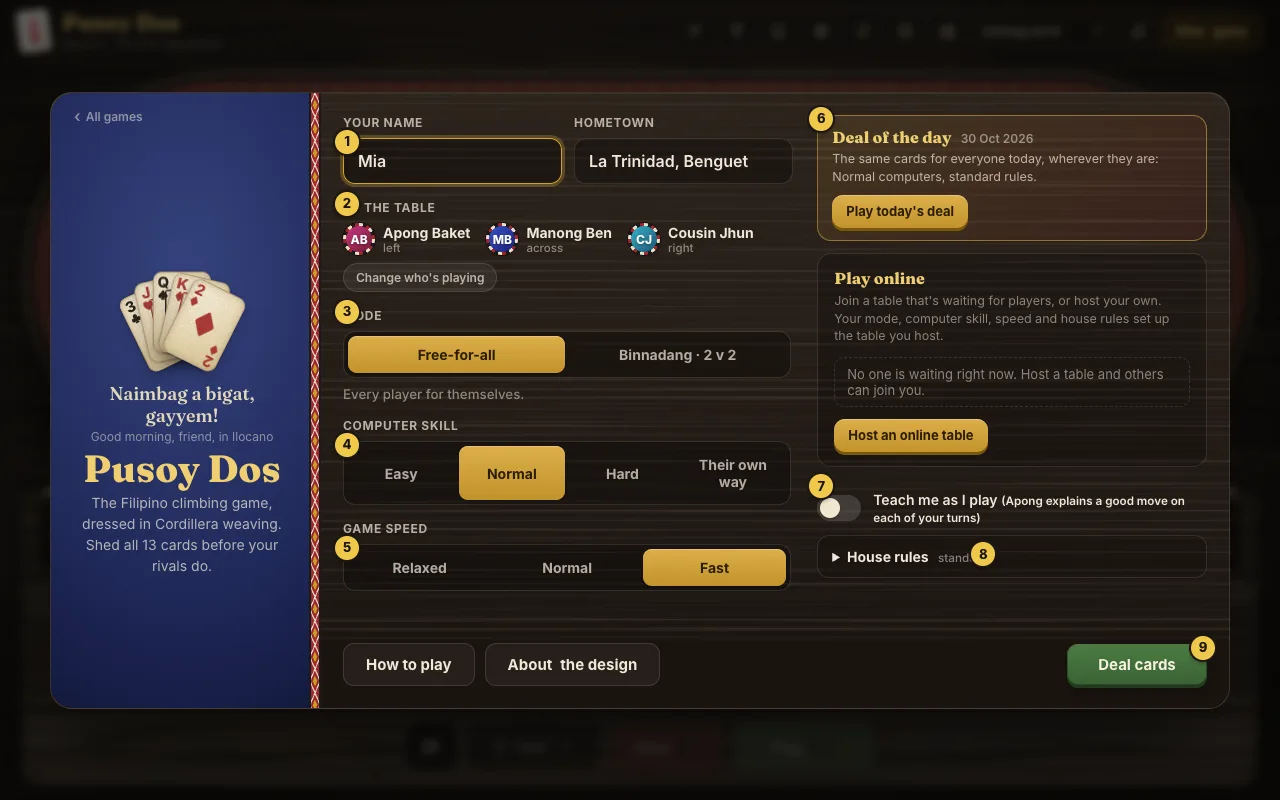
- 1Your name and hometown. Typed once and shared by every game on the site. Your hometown sets the view behind the table and shows beside your name online.
- 2At the table. The three village characters you'll play against. Change who's playing seats different ones. Point at a name to see your record together.
- 3Mode. Free-for-all, or Binnadang · 2 v 2, where you partner the player across from you (with the optional badang card swap between partners). Some games have only one mode.
- 4Computer skill. Easy, Normal, Hard, or Their own way, where each character plays at their own level: the grandparents are sharpest.
- 5Game speed. How quickly the computer players move. Relaxed gives you time to watch.
- 6Deal of the day. One deal for everyone, the same cards wherever you are. See Daily deal and keepsakes.
- 7Teach me as I play. Apong suggests a good move on each of your turns. See Teach me.
- 8House rules. Tap to open the rules groups play differently. The word beside it says whether you're on standard rules.
- 9Deal cards starts the round. How to play opens the rules, and About the design tells the stories behind the look and the words.
The Play online box (between the daily deal and the Teach me switch) is for playing with friends: see Playing online. On the left, All games goes back to the homepage.
At the table
Your cards are along the bottom, the other players sit around the felt, and the last play is in the middle.
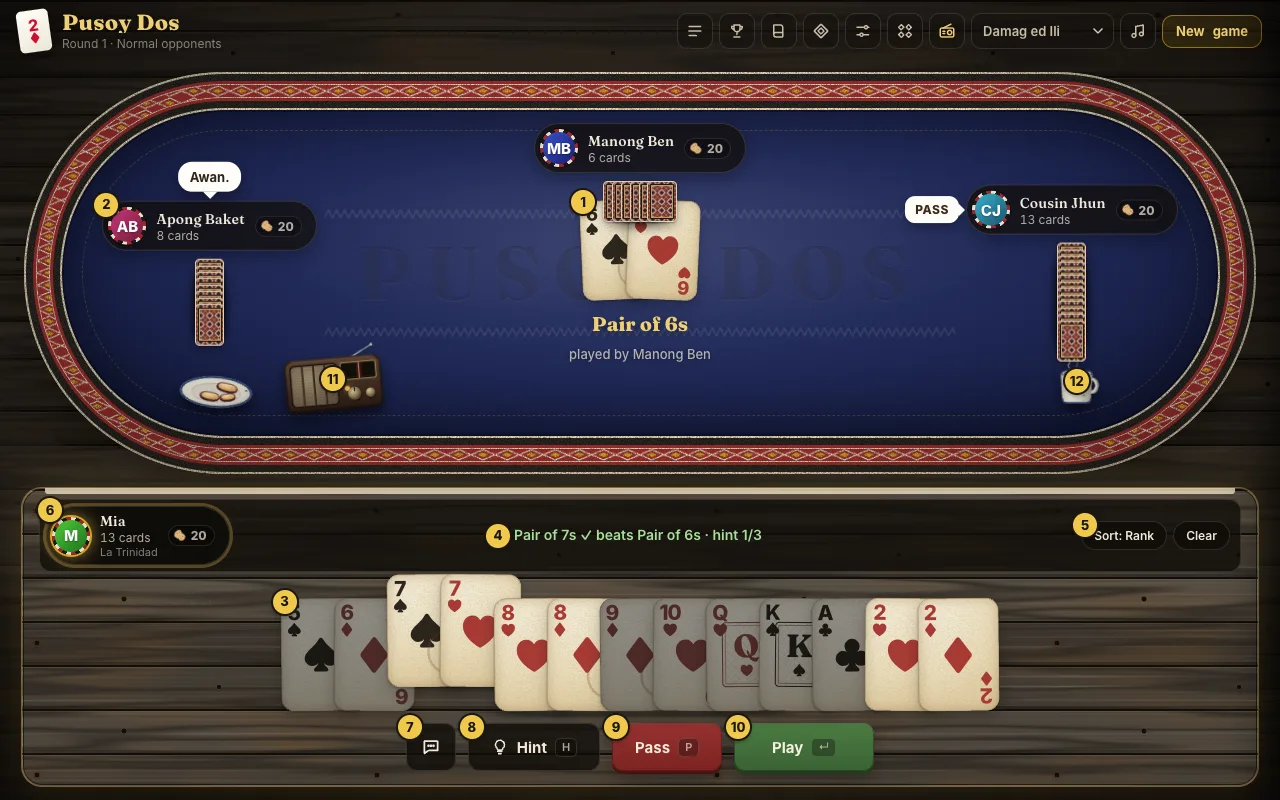
- 1The last play, with what it is and who played it.
- 2A player's seat: their name, cards left and their pile of stakes. Speech bubbles show what they say, and PASS when they pass. Point at a name for your record together.
- 3Your cards. Click or tap to pick a card; drag across several to pick them all. Picked cards rise. Cards that can't be part of any legal play are dimmed (Settings can turn that off).
- 4The readout says what your selection is and whether it beats the table, or what you need to do.
- 5Sort by rank, by suit, or your own order (hold a card still for a moment, then drag it along your hand). Clear drops your selection.
- 6You: your cards left, your pile, and tags such as CONTROL when the lead is yours.
- 7Say something: quick reactions. See Chat and quick reactions.
- 8Hint picks a legal play for you. Press it again to go through every legal play.
- 9Pass when you can't or won't beat the table. (You can't pass when you have the lead.)
- 10Play puts your selection down. It lights up only when the selection is allowed.
- 11The radio on the table. Tap it to change the station. Its dial shows what's playing.
- 12Coffee and camote go down as you play. Just for company.
Each game has the buttons its rules need: Lucky 9 has no Sort or Hint, for example, and Tongits has buttons for drawing and laying down melds. The Rules screen in each game lists its controls.
Pares Pares has no Play or Pass. On your turn the hand you draw from opens, face down, in the middle of the table: point at a card (or use ← →) and tap it again, or press Take it. Your own cards are in the order the next player draws from, so Shuffle (S) mixes them when someone may know where a card is, and you can drag a card to move it. Pairs go down in the pile by themselves, and the one left holding the last card, the unggoy, gets a smudge of charcoal on their face.
The History drawer
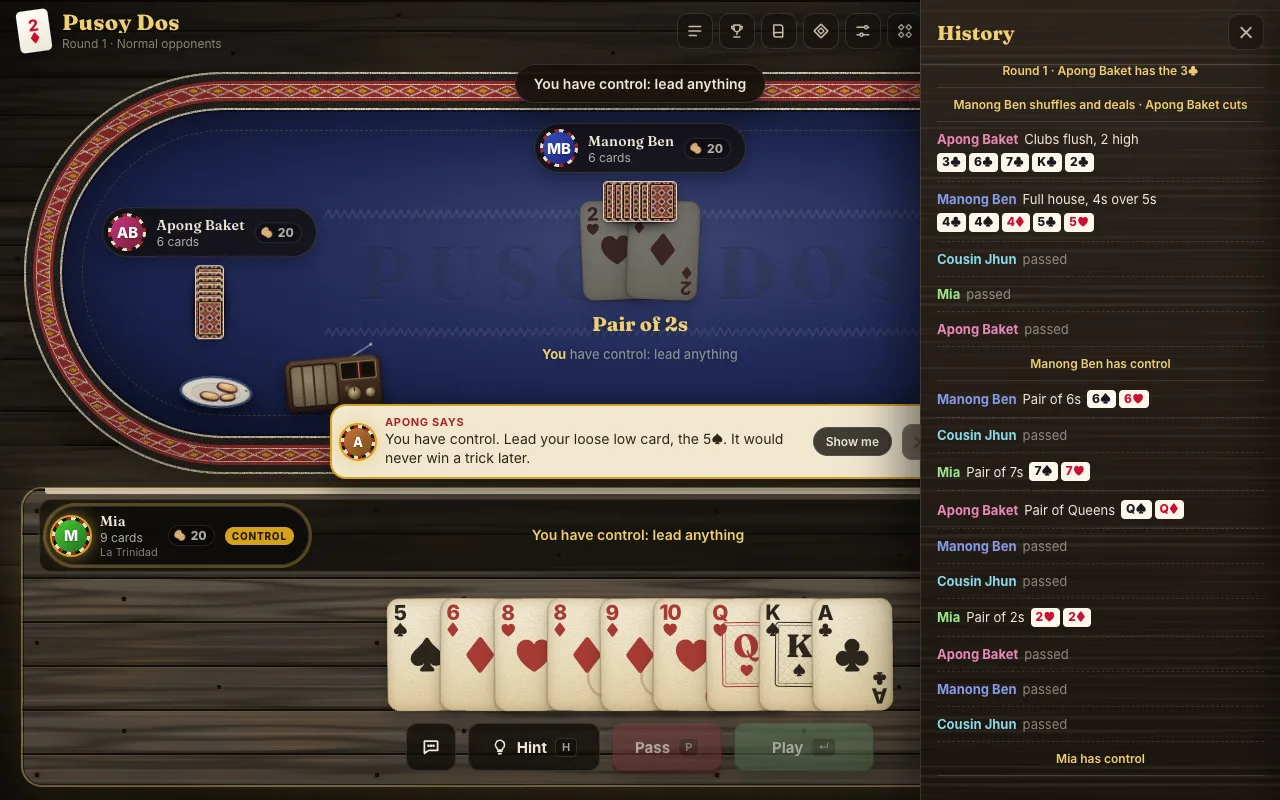
The History button (or L) opens every play of the round so far, newest at the top, and who passed. Close it with ✕ or Esc. Pusoy has no History button.
The top bar

- 1History: the plays so far this round.
- 2Scores: the scoreboard. See Scores.
- 3Rules: how to play, with the controls.
- 4About: the stories behind the look, the music, the people and the words.
- 5Settings. See Settings.
- 6All games: back to the homepage.
- 7Radio: tune to another station.
- 8What the radio plays: all stations, or one group.
- 9Music: mute or unmute the radio.
- 10New game: back to the start screen (Lucky 9 says New session).
Under the game's name, a line tells you the round, the mode and the computer skill (and Online when you're at an online table).
The buttons show words on very wide screens and icons alone on narrower ones; point at an icon, or move to it with Tab, and a tip gives its name and its key (for example L for History). On tablets and phones the first six fold into the ⋯ menu: see On a phone. Online, a Chat button joins them.
The radio and sound
The music is live radio, streamed from real stations, in three groups:
- Montañosa Country Sounds: classic country, honky-tonk and bluegrass.
- Damag ed Ili: stations from home, in Baguio, Ifugao and Kalinga.
- Pilipino Sounds: stations from across the Philippines.
Turning it on, changing it, muting it
- The radio starts with the first deal, on a station picked at random. If your browser blocks sound until you touch the page, the radio button blinks: tap anywhere and it starts.
- Change the station with the radio button in the top bar (7 in the top bar picture), or by tapping the transistor radio on the table. You'll hear a little static between stations, and a note says what's on.
- Choose what plays with the drop-down beside it (8): All stations, or just one group. New players start with Damag ed Ili, the stations from home. If you've picked two groups in Settings it shows Your mix.
- Mute or unmute with the music button (9). Muting is yours alone, even online. The card sounds have their own switch in Settings.
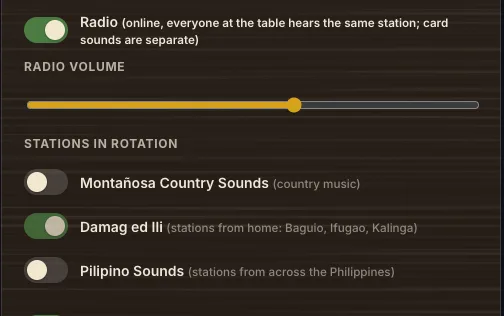
- Volume is in Settings. On phones, the phone's own volume buttons may be the only volume control.
Good to know
- A station that can't be reached is skipped. After three in a row the radio stops trying until you press the radio button again.
- The radio needs a connection, so it's silent when you play offline. During a brownout it goes quiet until the power comes back.
- A few stations from home only stream over plain
http, so a site served overhttpsleaves them out. - Online, the whole table hears the same station. Anyone can change it, and everyone sees who did. Muting stays your own.
Playing online
Play with family and friends wherever they are, up to four at a table. The computer fills any empty seats. There's nothing to sign up for. (Online play needs the site's own server; if the game is served as plain files, the online box is hidden.)
Hosting a table
- On the start screen, set your name, the mode, the computer skill, the speed and any house rules. These become your table's settings.
- Press Host an online table. The waiting room opens.
- Send the invite link to the people you want to play with (Copy, or Share on a phone).
- Press Start whenever you're ready. Empty seats are played by the computer, and the button says how many.
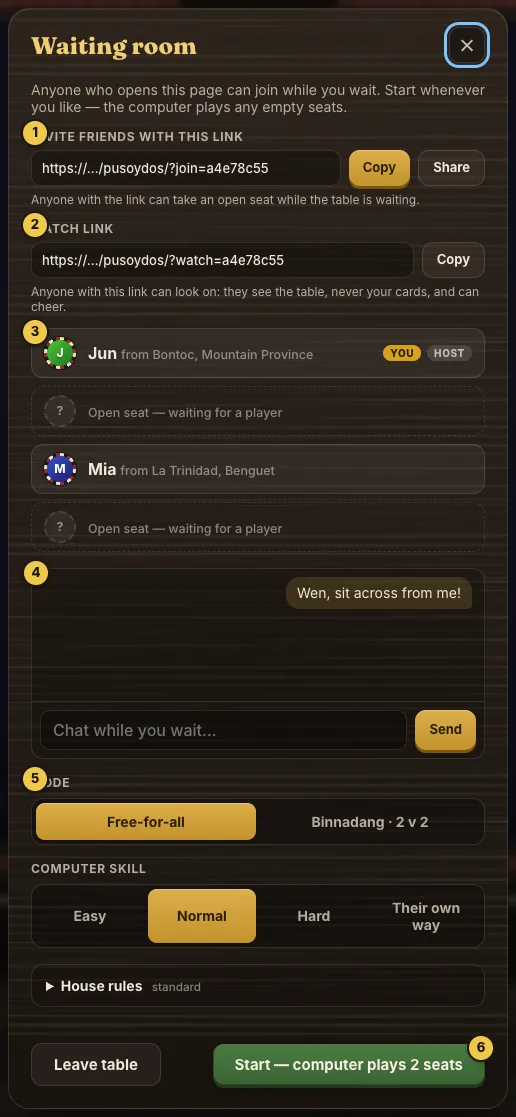
- 1Invite link. Whoever opens it sees your table at the top of their start screen and joins with one tap. Anyone with the link can take an open seat while the table is waiting, so share it only with the people you mean to play with.
- 2Watch link. For onlookers: see Watching a table.
- 3The seats. The second player sits across from the host, so in 2 v 2 you're partners. Each player's hometown shows beside their name.
- 4Chat while you wait.
- 5The host's choices: mode, badang swap, computer skill and house rules. The host can change them between rounds too.
- 6Start the round. Leave table gives up your seat; if the host leaves, the next player becomes host.
Joining a table
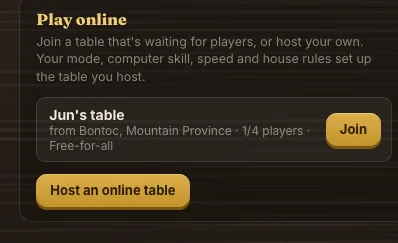
- From an invite link: open it, and the table is at the top of the start screen. Press Join.
- From the list: any table waiting for players shows under Play online, on the game's start screen and on the homepage's game card.
- A table already mid-round, or full, shows a Watch button instead.
During the round
- The server deals and keeps every hand. Your browser only ever gets your own cards.
- The computer players at an online table are the village characters, and everyone hears the same lines.
- If your connection drops, the computer plays your seat after 15 seconds, and you get it back when you return. Reloading the page in the same tab takes you straight back.
- Someone who leaves the waiting room for 20 seconds gives up their seat.
- If the server restarts, you see a short notice and your browser reconnects on its own. The round carries on where it stopped.
- Points are kept for the table while it's open. Online rounds don't change your offline scoreboard.
Watching a table
Anyone with the watch link, or the Watch button on a table that's mid-round or full, can look on without a seat. Onlookers see the table from the host's chair with every hand face down, the plays, the counts, the scores and the chat, and can cheer or groan with quick reactions, which show as small bubbles in a corner of the table. They can't play, chat, change the station or start a round, and they never hold anything up. Players see how many are watching. A table takes up to 20 onlookers.
Chat and quick reactions
Chat (online)
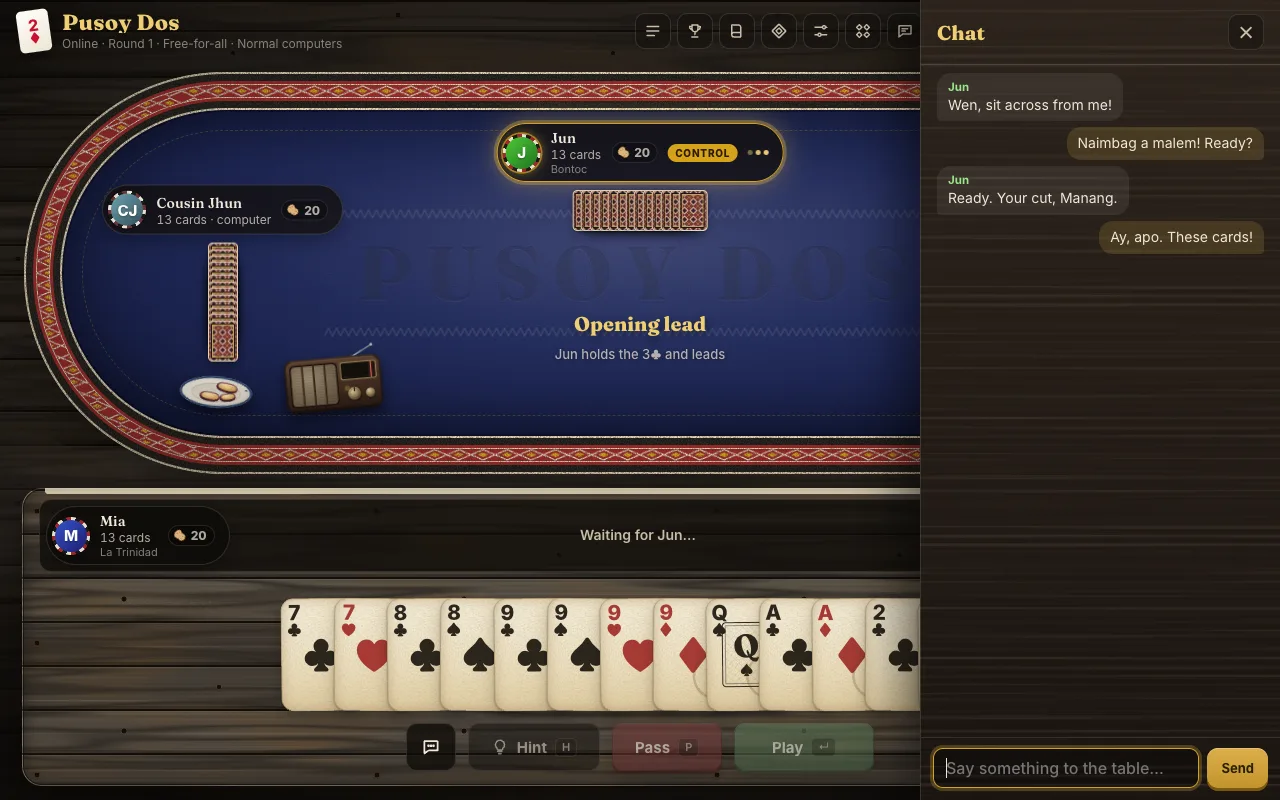
- Open it with the Chat button in the top bar, or C. Type and press Send or Enter.
- When the drawer is closed, new messages pop up briefly and the Chat button shows how many you haven't read.
- The table keeps its last 50 messages, so anyone who reloads or joins late can read back. Messages are up to 200 characters.
Quick reactions (offline too)
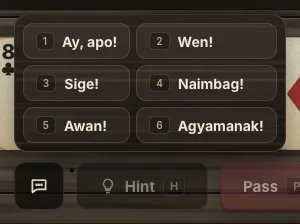
The speech-bubble button beside Hint (or Q or R) opens six quick things to say, mostly in Ilocano: Ay, apo!, Wen!, Sige!, Naimbag!, Awan! and Agyamanak! Pick one, or press 1 to 6. Point at one for its meaning.
Online, everyone at the table sees it. Offline, the characters at the table may answer.
Teach me as I play

- With Teach me as I play on (start screen or Settings), Apong suggests a good move on each of your turns and says why. It's the move a Hard computer player would make.
- Show me picks those cards in your hand (or tells you to pass). You still decide: press Play, or choose something else.
- ✕ hides the tip for this turn.
- The first time something important comes up (control, passing, 2s, five-card hands, a player down to one card), there's a short lesson.
- It starts switched off. Turn it on whenever you'd like Apong beside you, and off again when you're ready to play on your own.
After a round
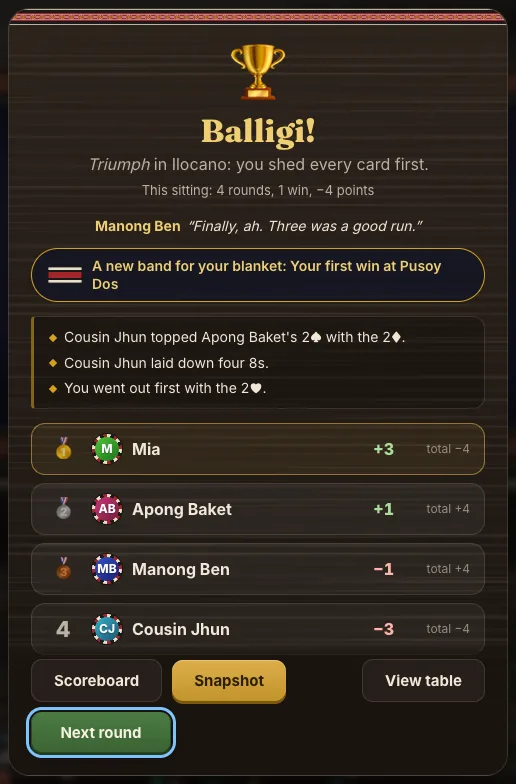
When the round ends, the results show:
- How you did, with a word in Ilocano (Balligi! is triumph).
- This sitting: rounds since you opened the page, your wins and your points.
- What one of the players thinks of it.
- Any new band for your blanket you've earned.
- The round's story: up to three moments worth telling.
- The places and points, with running totals, and the cards anyone was left holding.
The buttons:
- Scoreboard: your record. See Scores.
- Snapshot (after a win): a picture of your hand and your winning play, with who you beat, your hometown and the date, to save or share.
- Share result (after the deal of the day): your place and finishing order to send.
- View table: close the results to look at the table as it ended.
- Next round: deal again. Whoever came last shuffles and deals; when it's your cut, tap the deck.
Stakes: everyone starts with a pile of 20 peanuts (or candies, matchsticks or coins: Settings), and after each round the losers pay the winners their points. When someone runs out, the piles start again.
Scores, export and import
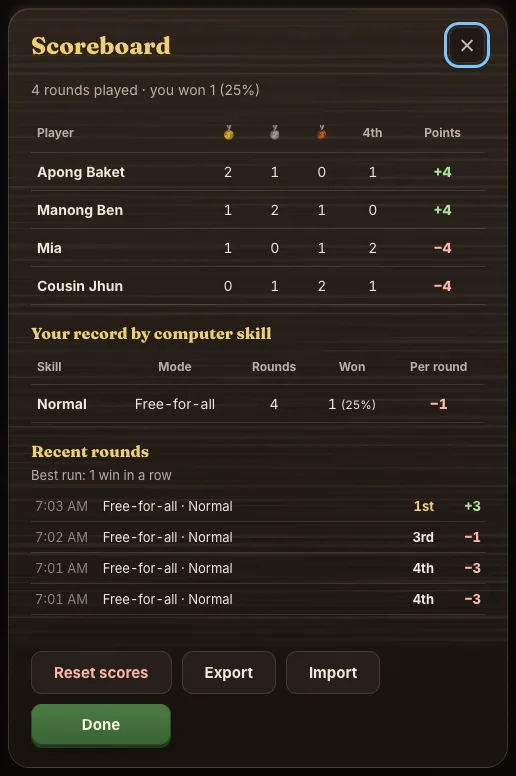
The Scores button opens your scoreboard for that game:
- Places and points for everyone (2 v 2 rounds are kept separately, with sweeps).
- Your record against each computer skill.
- Your last 30 rounds, with any house rules, and your best run of wins.
Scores are kept in this browser on this device.
- Export saves them as a file, to keep a copy.
- Import loads that file, for example on a new phone or another browser.
- Reset scores starts over (it asks first).
Settings
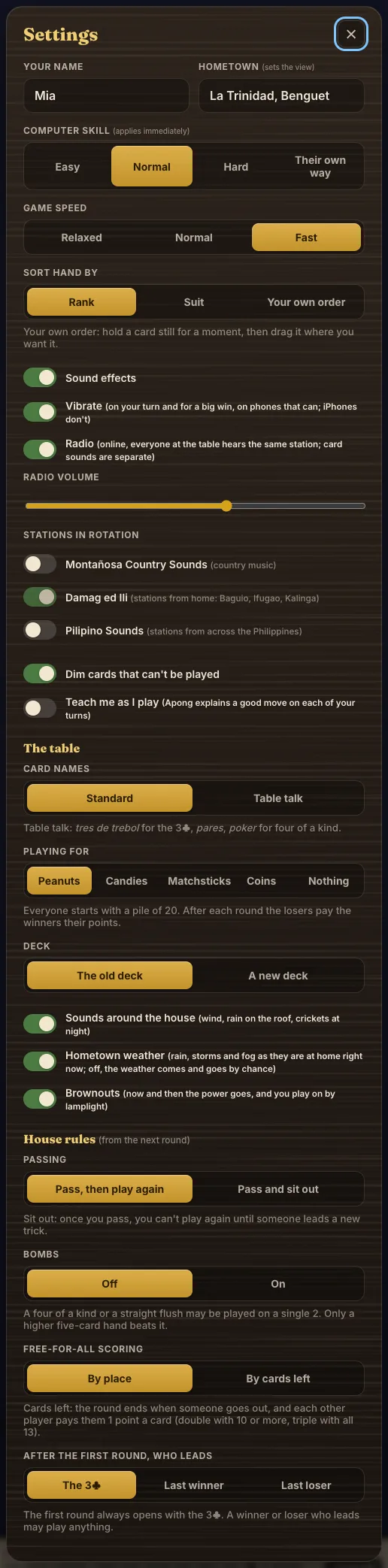
From the top:
- Your name and hometown, the computer skill (changes at once) and the game speed.
- Sort hand by rank, suit, or your own order.
- Sound effects: the card and gong sounds.
- Vibrate on your turn and for a big win, on phones that can (iPhones can't).
- Radio, its volume, and the stations in rotation. See The radio.
- Dim cards that can't be played.
- Teach me as I play.
The table:
- Card names: standard, or table talk, the Spanish-Filipino names (tres de trebol for the 3♣).
- Playing for: peanuts, candies, matchsticks, coins, or nothing.
- Deck: the old, worn deck, or a new one.
- Sounds around the house: wind, rain on the roof, crickets at night.
- Hometown weather: see Hometown, weather and seasons.
- Brownouts: now and then the power goes and you play on by lamplight. Turn it off if you'd rather not.
House rules take effect from the next round. Online, only the host can change them, from the waiting room.
Hometown, weather and seasons
- The view through the window follows your hometown: Benguet's vegetable terraces, Baguio's pine hills, Ifugao's rice terraces, Mountain Province limestone, Kalinga's river valley, Abra's hills or Apayao's forest. It also follows your clock, from dawn to a starry night.
- With Hometown weather on and a Cordillera hometown, the room has the weather there right now: rain on the window and the roof, a storm with far thunder, or fog. Off, or for a town outside the Cordillera, rain and fog come now and then by chance.
- Seasons follow the date in the Philippines: Panagbenga flowers in February, and a parol and a string of lights from 1 December to Three Kings.
Daily deal and keepsakes
Deal of the day
One deal for everyone, by the date in the Philippines, against Normal computers with standard rules. Everyone gets the same cards, and the same plays meet the same replies. Your first result each day is kept, with your run of days, and Share result sends your place and finishing order.
The village remembers you
Each character keeps your record with them across every game on the site (offline rounds). Someone you haven't seen in a while says so; someone you've beaten asks for a rematch. Point at a name at the table or on the start screen for your record together.
Your blanket
Milestones weave bands into a cloth on the homepage: your first win in each game, going out first without a 2, a 2 v 2 win and a sweep, and more across all the games. A new band is announced on the results. Point at a band on the homepage to see what it was for.
Weekend tournament
On Saturdays and Sundays the homepage shows a bracket. Each match sends you to a game for one round against your opponent; finish ahead of them to go through. The results say how it went, with Back to the bracket, and your usual table comes back afterwards.
On a phone
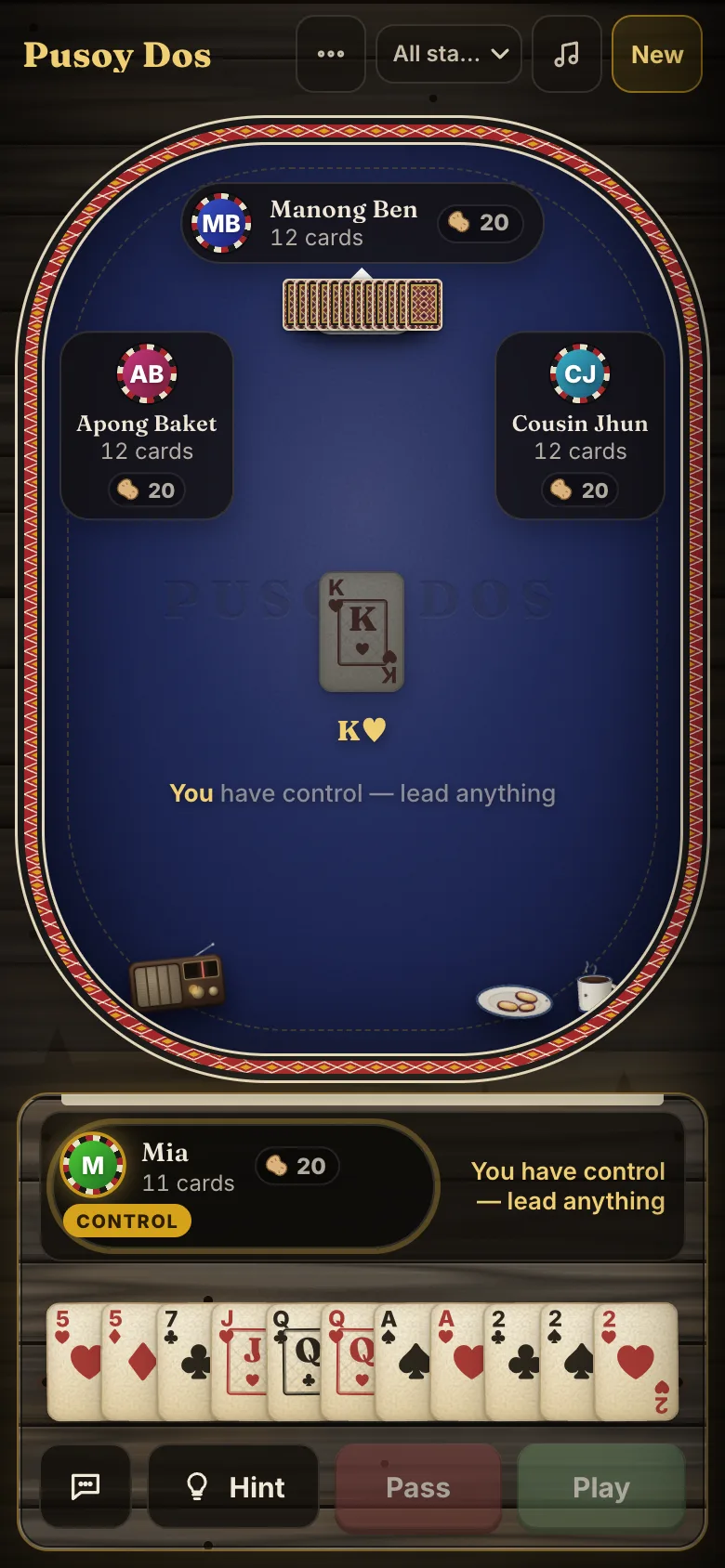
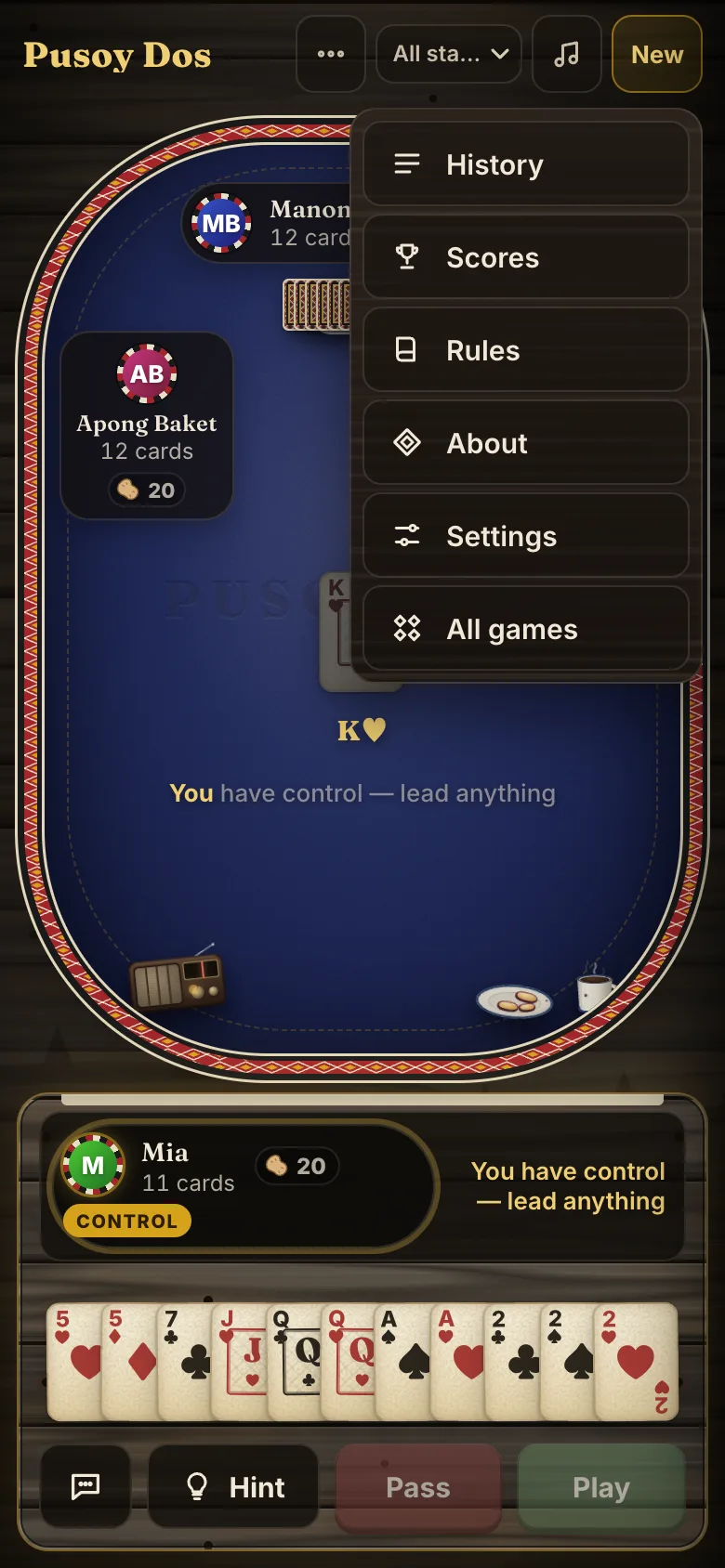
- The games work in portrait and landscape. In landscape, Play and Pass sit beside your hand.
- The top bar keeps the ⋯ menu (History, Scores, Rules, About, Settings, All games), the station drop-down, Music and New. On the smallest screens, change the station by tapping the radio on the table.
- Press and hold a button for a moment to see its tip (it doesn't press the button). This works everywhere except on your cards, where holding a card picks it up to move it.
- Dialogs keep their main button in view; scroll inside them for the rest.
- Add it to your home screen and it opens full screen, like an app: on iPhone, Share → Add to Home Screen; on Android, ⋮ → Add to Home screen.
Keyboard and gestures
| Keys | What they do |
|---|---|
| ← → | Move between your cards |
| Space | Pick or drop the card you're on |
| Alt + ← → | Move that card along your hand |
| Enter | Play |
| P | Pass |
| H | Hint (again for the next one) |
| S | Sort |
| Esc | Close an open menu or drawer; otherwise clear your selection |
| L | History |
| Q or R, then 1–6 | Say something |
| C | Chat (online) |
Each game's Rules screen lists its own keys. Your hand is one stop for Tab. After you click a button, Enter still plays your cards; a button you reach with Tab takes Enter itself.
Gestures
- Drag across cards to pick several at once.
- Hold a card still for a moment, then drag it along your hand to move it. Your arrangement becomes the Own sort.
- Flick a card, or your selection, up toward the table to play it. A play that isn't allowed springs back.
- Knock to pass: double-tap the felt, and you'll hear the knock.
Nothing needs a gesture: the buttons and keys do it all.
Your account
You need a free account to play. It keeps your name and hometown on every phone and computer you use, and you sign in with a passkey: the fingerprint, face or screen lock you already use, with no password or email. Open Account at the top of the homepage, or just open a game: you'll be asked to sign in, then taken straight back to it.
- Create one: type the name to show at the table (and your hometown if you like), then press Create account with a passkey. Your phone or computer asks for your fingerprint, face or screen lock, and makes a passkey for the site. There's no password and no email.
- One name, one person: no two accounts share a name (capitals and spaces don't count, so "Mia" and "mia" are the same). If the page says your name is taken and it's you, you already have an account: choose Sign in with a passkey instead of making another.
- Sign in on another device with Sign in with a passkey. If your passkey is synced (iCloud Keychain, Google Password Manager), it's already there. If not, choose to use a phone and scan the code it shows with the phone that has it.
- Signing in brings your name, hometown, colour and game settings (radio, sounds, card talk, Teach me and the like) to the games in that browser. Change your profile on the account page and press Save; settings you change in a game follow you on their own.
- Your colour is the colour of your circle at the table, offline and online. Show my hometown to other players can be turned off: your games still use it for the scenery and weather, but online tables and friends don't see it.
- Add a passkey on a second device as a spare: with no password or email to fall back on, losing your only passkey means losing the account. Tap Rename to tell your passkeys apart.
- Recovery codes: make a set of ten on the account page and keep them somewhere safe, away from your phone. If every device with your passkey is lost, choose Lost your passkey? Use a recovery code, type your name and one code, and you're in; then add a passkey on that device. Each code works once, and making a new set cancels the old one.
- Where you're signed in lists your browsers; sign out any you don't recognise, or all but this one.
- Download my data saves everything the site keeps about you. Delete my account removes it all for good, after your passkey confirms it's you.
Friends and invitations
- Add a friend on the account page by the exact name they show at the table, with a few words about who you are. They see your name, hometown (if you share it) and your message, and choose Accept, Decline or Block. You aren't told about a decline or a block; you can ask again a week after a decline.
- Show me as online to my friends is off until you turn it on. Friends then see that you're on the site, never which game or table.
- Inviting: host an online table, and the waiting room lists your friends who are online, with an Invite button. They get a card on whichever page of the site they have open: Join takes them to your table, Not now lets you know they can't come. Invitations last ten minutes.
- Remove or Block a friend at any time. Someone you've blocked can't see you online, invite you or send you a request, and isn't told.
Scores and keepsakes stay in each browser. Signing out locks the games in that browser again, offline copies included, until you sign in.
Playing offline
Once you've opened the homepage or a game, it opens again without a connection, to play against the computer. The browser keeps a copy and refreshes it whenever the network answers, so updates still arrive on your next visit. The radio and online tables need a connection; everything else works.
When something's wrong
There's no music
- Check the music button isn't muted (a slash through the note), and that Radio is on in Settings.
- If the radio button blinks, tap anywhere on the page: your browser wants a touch before it plays sound.
- The radio starts with the first deal, and goes quiet in a brownout or without a connection.
- If a station can't be reached, press the radio button for another. Some networks block streaming.
- On a phone, check the phone's own volume and silent switch.
I can't see "Play online"
Online play needs the site's server. If the game is served as plain files, or you're offline, the online box is hidden and everything else works.
My friend can't join my table
- Make sure the table is still in the waiting room: once the round has started, newcomers can only watch.
- A table holds four players. Send them the invite link again from the waiting room.
I dropped out in the middle of a round
Reload the page in the same tab, or open the game again: you're taken back to your seat. Until then the computer plays it for you.
My scores are gone on my new phone
Scores live in the browser they were made in. On the old device, open Scores → Export; on the new one, Scores → Import that file.
The room went dark
That's a brownout: the power's gone for a little while, and you play on by lamplight. You can turn brownouts off in Settings.